




Finding the best WARDOGS settings can make a noticeable difference when large firefights, vehicles, destruction, smoke and long-distance engagements put pressure on your PC.
WARDOGS is a tactical first-person shooter built around large-scale battles. Your ideal graphics setup should aim for stable performance while keeping enemies and important battlefield details easy to see.
Quick answer: For better FPS and visibility in WARDOGS, start with low shadows and reflections, disable motion blur and depth of field, keep view distance relatively high, and test Quality-mode upscaling if your GPU needs additional performance. The ideal configuration varies by hardware and resolution.
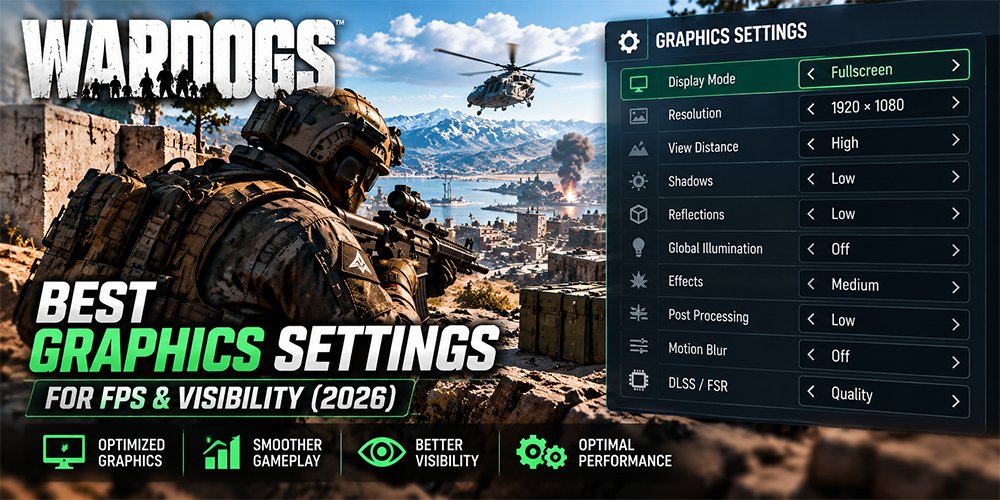
Quick WARDOGS Best Settings for FPS and Visibility
| Setting | Recommended Starting Point |
|---|---|
| Display Mode | Fullscreen / Windowed Fullscreen |
| Resolution | Native |
| VSync | Off |
| View Distance | High |
| Mesh Detail | Medium |
| Global Illumination | Off or test separately |
| Shadows | Low |
| Reflections | Low |
| Effects | Medium |
| Post Processing | Low |
| Motion Blur | Off |
| Depth of Field | Off |
| DLSS/FSR | Quality as a starting point |
| FOV | Around 95–105 as a starting range |
Treat these as starting values rather than a universal preset. Your GPU, CPU, resolution, monitor refresh rate and the current game build can all affect the result.
Why WARDOGS Graphics Settings Matter
A busy battle can include many players, vehicles, environmental effects and destruction simultaneously. A PC that performs smoothly in a quiet area can behave differently during a crowded fight. Optimization should therefore focus on stable frame delivery and clear battlefield visibility.
Best WARDOGS Graphics Settings for FPS
Display Mode and Resolution
Start with Fullscreen or Windowed Fullscreen and your monitor’s native resolution. If your GPU is the limiting factor, test an available upscaling option before aggressively lowering output resolution.
VSync
For players prioritizing responsiveness, VSync Off is a sensible starting point. Players using variable refresh rate technologies should test their own monitor and frame-rate configuration.
View Distance and Mesh Detail
Start with View Distance on High and Mesh Detail on Medium. Large outdoor environments make distant battlefield information valuable, so reduce shadows, reflections and post-processing before aggressively cutting view distance.
Global Illumination, Shadows and Reflections
Test Global Illumination Off, Shadows Low and Reflections Low. These are useful places to reduce graphical load while preserving core battlefield clarity.
Effects and Post Processing
Try Effects on Medium and Post Processing on Low. Disable Motion Blur and Depth of Field when your priority is a clean image during rapid movement.
Best WARDOGS Settings for Visibility
High FPS alone does not guarantee a better experience. Prioritize high-enough view distance, low shadows, minimal unnecessary post-processing, Motion Blur Off, Depth of Field Off, a sensible FOV and native resolution or high-quality upscaling.
WARDOGS Best FOV
Around 95–105 FOV is a practical starting range. Higher FOV gives more peripheral information but can make distant targets appear smaller. Test several values based on your playstyle and display.
Best WARDOGS Settings for Low-End PCs
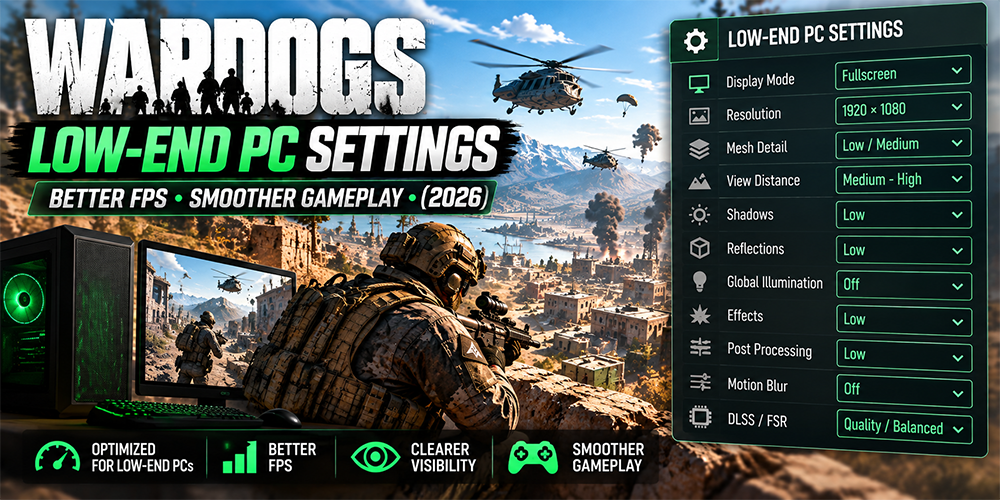
Players using older hardware should reduce GPU-heavy effects while maintaining essential visibility. Start with Low or Medium mesh detail, Medium–High view distance, Low shadows and reflections, Global Illumination Off, Low effects and post-processing, Motion Blur Off, and Quality or Balanced upscaling as required.
Do not immediately reduce every option to its minimum. Test a repeatable scene and change one or two settings at a time.
WARDOGS DLSS and FSR Settings
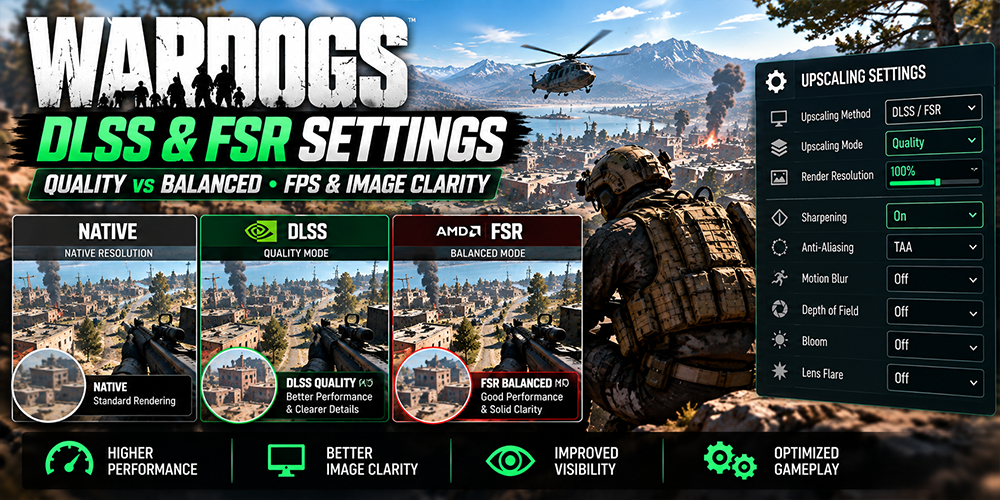
If your hardware supports an available upscaling technology, start with Quality Mode. If performance is still below your target, test Balanced Mode. Performance-oriented modes can add headroom but may reduce fine image detail, so compare image clarity and distant-player visibility as well as FPS.
How to Increase FPS in WARDOGS
- Establish a baseline in a representative gameplay scenario.
- Reduce shadows and reflections.
- Test Global Illumination Off.
- Disable Motion Blur and Depth of Field.
- Test Quality-mode upscaling.
- Reduce effects and particle-related settings if crowded fights still cause drops.
- Retest during actual multiplayer combat.
WARDOGS Low FPS Fix
If performance remains poor, check current GPU drivers, unnecessary background applications, CPU/GPU temperatures, memory usage and resolution. Early-access performance can change after patches, so settings may need to be retested after major updates.
How to Fix WARDOGS Stuttering
Stuttering and low average FPS are not necessarily the same problem. Restart after major graphics changes, check CPU/GPU/memory utilization, close unnecessary background apps, monitor VRAM pressure, try a stable FPS cap, and compare native resolution with Quality upscaling.
Best Competitive WARDOGS Settings
For competitive play, prioritize consistency rather than maximum graphics quality. Keep visibility-related options high enough to read the battlefield, while reducing shadows, reflections and expensive lighting when additional GPU headroom is needed.
WARDOGS Settings by PC Performance Level
Low-End PC
Prioritize performance with Low settings as a baseline, expensive effects disabled and upscaling when necessary.
Mid-Range PC
Use Medium as a base, keep View Distance relatively high and lower shadows, reflections and unnecessary post-processing.
High-End PC
Increase graphical quality where desired, but prioritize stable high frame rates and avoid effects that reduce clarity.
How to Find the Best WARDOGS Settings for Your PC
Pick a repeatable gameplay situation and record resolution, graphics preset, upscaling mode, FPS, GPU usage, CPU usage and VRAM usage if available. Change one important setting at a time and repeat the test.
Frequently Asked Questions
What are the best WARDOGS settings for FPS?
Start by lowering Shadows and Reflections, testing Global Illumination, disabling Motion Blur and Depth of Field, and keeping View Distance reasonably high. Use Quality upscaling if additional GPU performance is required.
What are the best WARDOGS settings for visibility?
Keep View Distance high, disable unnecessary blur and cinematic effects, use an appropriate FOV and maintain enough resolution or upscaling quality to keep distant targets clear.
What is the best FOV for WARDOGS?
Around 95–105 is a practical starting range for many players, but personal preference and playstyle matter.
Should I turn Motion Blur off in WARDOGS?
Players prioritizing a clean image during rapid movement should try Motion Blur Off.
How do I fix low FPS in WARDOGS?
Lower expensive graphics options first, disable unnecessary post-processing, test upscaling, update your GPU driver, close heavy background applications and benchmark changes during real multiplayer combat.
Final Thoughts
The best WARDOGS settings are not simply the lowest graphics options available. Aim for stable FPS, clear visibility and consistent responsiveness while retaining the battlefield information you need. Recheck your configuration after major game updates because performance can change between builds.
Other Articles

New Hampshire Fall Foliage 2026: Where to See Color Now
Trump Canada Immigration Comments: What He Said and What the Data Shows



No Comment! Be the first one.